Google Huawei Issue: Fix Apps, Logins and Alerts Fast

An app can install successfully and still fail in everyday use. The sign-in screen may loop, notifications may arrive late, maps may not detect location, or an update may refuse to download. These problems are easier to solve when you separate store access, Google service dependencies, network conditions, and phone permissions.
Confirm the App and Update Source
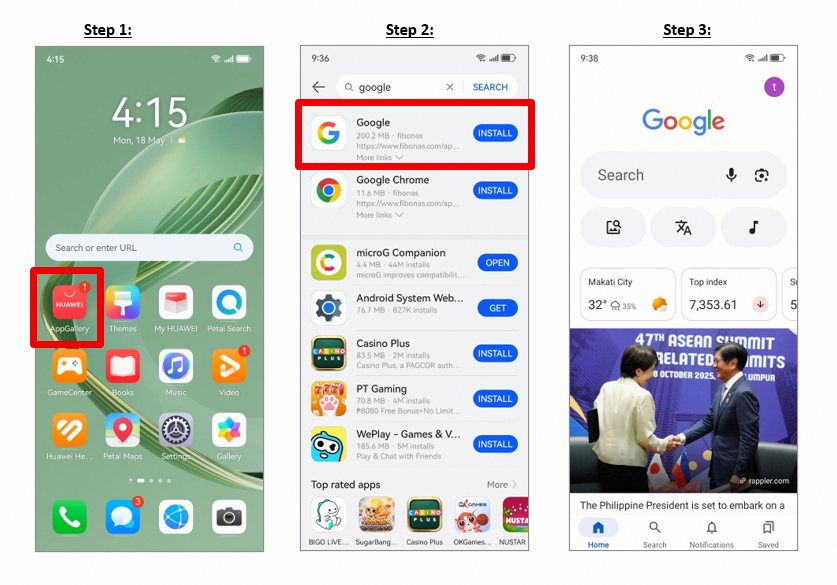
Begin by checking where the app came from. Search for it in AppGallery and install any available update. If the developer provides an official download or web version, use that rather than an unknown APK library. Keeping one trusted source prevents conflicting packages and failed updates.
A common google huawei issue starts when several versions of the same app are installed from different sources. Remove duplicates only after saving local files, drafts, and account recovery details.
Fix Sign-In and Account Problems
Switch between Wi-Fi and mobile data, set the phone’s date and time to automatic, and restart the app. Public networks may require a browser login before apps can connect. If a VPN or private DNS is active, test the app without it.
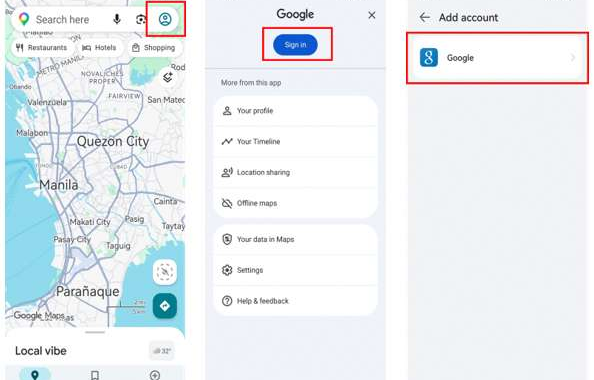
When an app uses a Google account, confirm that the sign-in method is supported in the version you installed. Some apps can use email login or a browser-based account page even when deeper Google Play services integration is unavailable. Never enter credentials into an installer or pop-up that cannot be verified.
Restore Notifications and Location
Check notification permissions inside the app and in the phone’s system settings. Then review App launch and battery management. Allowing an important messaging, delivery, or transport app to run in the background can improve alert delivery, although it may use more battery.
For maps, ride-hailing, and delivery apps, enable location only at the level required. Test GPS outdoors and compare the result on Wi-Fi and mobile data. If the app opens but cannot locate you, the issue may be permission or background activity rather than installation.
Clear Cache Before Reinstalling
If the app remains unstable, clear its cache, restart the phone, and try again. Clearing storage is a stronger step because it removes local settings and signs you out. Reinstallation should come after network, update, permission, and cache checks.
The google huawei issue page provides a Huawei Community route for downloading Google apps. Use that reference for installation, while treating login, notifications, location, and updates as separate troubleshooting steps.
Know When to Use an Alternative
Google explains that Google Play services is a background component used by many Android apps; it is not the same as the Play Store. If an app requires functions that are unavailable on the device, forcing another installer may not solve the dependency.
A verified web app, Huawei-compatible version, or competing local service can be more reliable. For overseas use, prioritise the option that supports account security, updates, maps, payments, and notifications rather than the one that only produces an app icon.
Maintain a Stable Setup
Treat the google huawei issue search as a troubleshooting checklist, not a single download problem. Confirm the source, test the network, review permissions, update the software, and change one setting at a time. This makes the result easier to maintain and reduces the risk of losing access to essential apps while abroad.